Getting Started Guide: Mixtures
Their are two mixture sheets available which allow the user to create arbitrary mixtures of elements and compounds and group them as a composition. The first sheet, used for example purposes below, is the Fuel Mixture sheet, while the second sheet is the Refrigerant Mixture Sheet. Note while the fuel sheet is typically used with reference fuel gas compositions, a composition can represent any mixture, combustible or not! When the user inserts a function via the user interface which requires a fuel or refrigerant mixture, the mixture sheet will be automatically created for you.
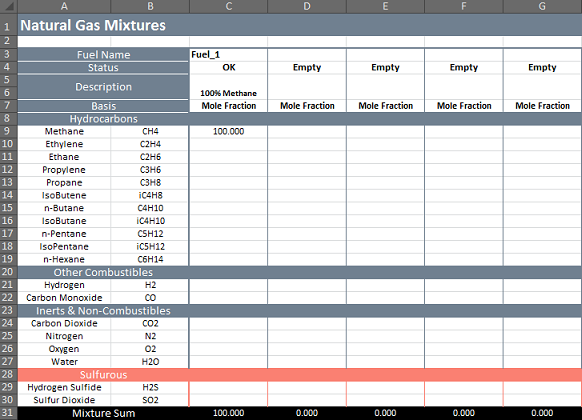
There are twelve available columns for the user to enter their desired mixture. The first column is prefilled in with a simple, 100% Methane composition as an example. The rows are as follows:
-
Fuel Name
Automatically created when the fuel composition is valid. This is used as the reference within a composition based function. Do not change.
-
Status
Indicates any problems with the entered composition. Do not change.
-
Description
User entered description of the composition. User may change.
-
Basis
User selected basis of the composition. User may change.
-
Methane .. Sulfur Dioxide
Fraction of component present in the composition. This is normalized automatically so percentage or fraction is OK. User may change.
-
Mixture Sum
Total fraction entered in the selected column. Do not change.
Referencing Mixtures
Referencing a mixture is simple, as shown in the following example:
In a new workbook load JSteam and insert the HmPT() function from General Thermodynamics -> Mixture -> Enthalpy. Paste with inputs and table. Clicking paste will insert the function and add a Fuel Mixture sheet automatically:

The "Mixture" cell requires a valid Mixture (Fuel or Refrigerant) Name referenced from the respective Mixture Sheet. To do this click on the empty cell to the right of the word Mixture (within the table), and press '=':

Next click on the FuelMixtures Tab at the bottom of the window to select the Fuel Mixture sheet:

And click on fuel name "Fuel_1" in Cell C3:
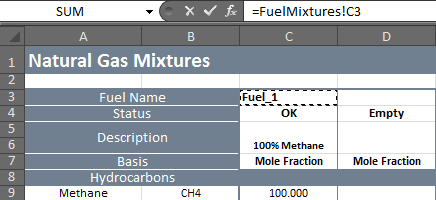
As shown in the formula window, our reference is now "=FuelMixtures!C3", and you can press enter. The reference is now complete and you can enter a pressure and temperature to calculate the enthalpy of this mixture at:

If you change Fuel_1's mixture the function will automatically calculate the enthalpy of the new mixture. For example change the mixture to 80% Methane, 20% Propylene will result in:

The same concept can be applied to fuel and refrigerant mixtures in unit operations. Simple!